
How to Create a Vercel Account
Vercel is a hosting platform for websites and web applications. When we push code changes, Vercel automatically builds and deploys your site — no manual uploading needed. It also handles things like custom domains, fast global loading speeds, and preview links so you can see changes before they go live.
Your business will own the Vercel team, the billing, and the production settings. Dev3 Studio joins as a team member so we can deploy and manage your project without needing your login details.
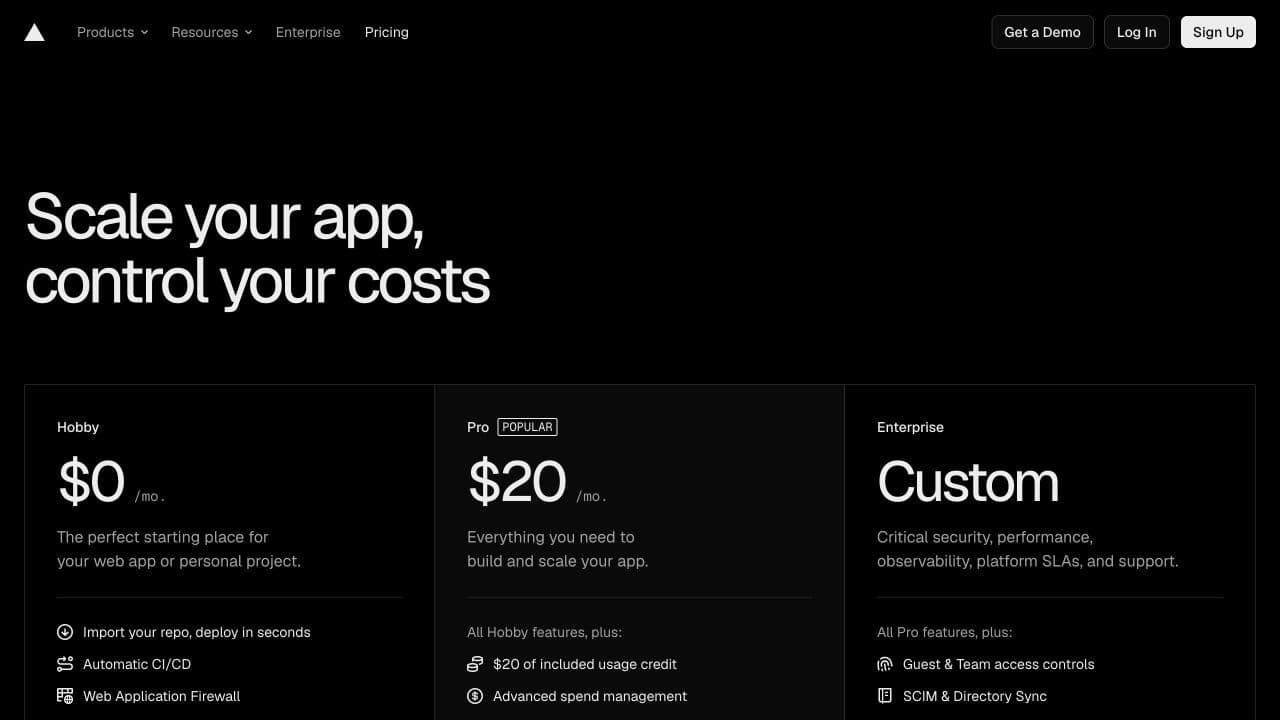
Plan requirement: Vercel only allows team member invitations on paid plans (Pro or Enterprise). Adding two Dev3 Studio members will create two paid seats, so check the pricing before upgrading.
Before You Begin
- A company-controlled email or login — use a permanent business identity to sign up, not someone's personal account. This should be the person (or shared account) that will own the team long-term.
- Two-factor authentication ready — you'll want to turn this on to keep the account secure.
- A team name — your company's trading name works best, so it's clear who owns the projects.
- A payment method — you'll need this to upgrade to the Pro plan.
Expected Costs and Timing
Vercel's Pro plan costs US$20 per month and includes US$20 of usage credit as of 18 July 2026. Each additional team member (called a "seat") costs US$20 per month. Since you'll be inviting two Dev3 Studio members, that's two extra seats — check the total before confirming.
The whole setup takes about 10-15 minutes. Invitations stay valid for seven days, so Dev3 Studio will need to accept them within that window.
Step 1: Sign Up for Vercel
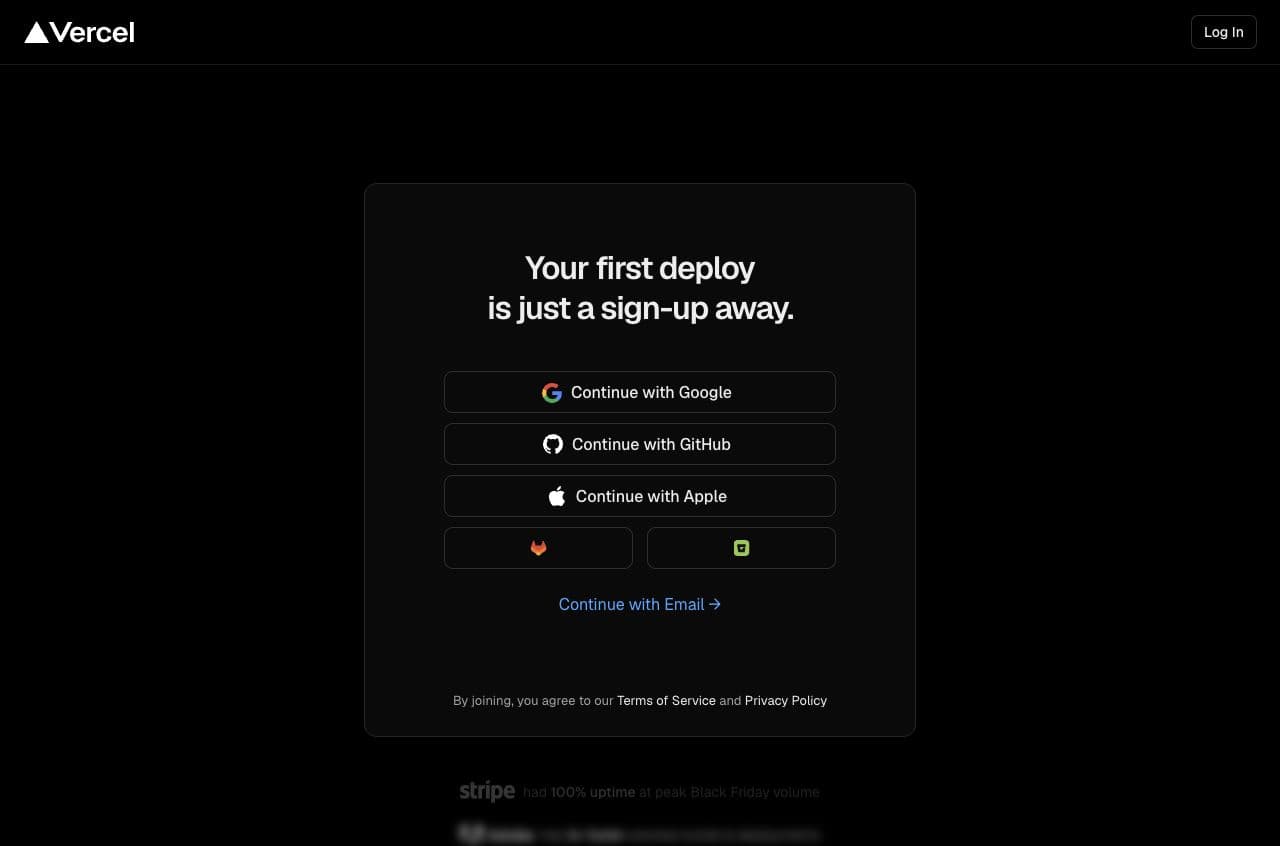
Go to the Vercel sign-up page and choose how you'd like to create your account. You can sign up with Google, GitHub, GitLab, Bitbucket, Apple, or a plain email address.
If your business already uses GitHub or GitLab for code, signing up with that account can make things smoother later. Otherwise, email works perfectly fine.
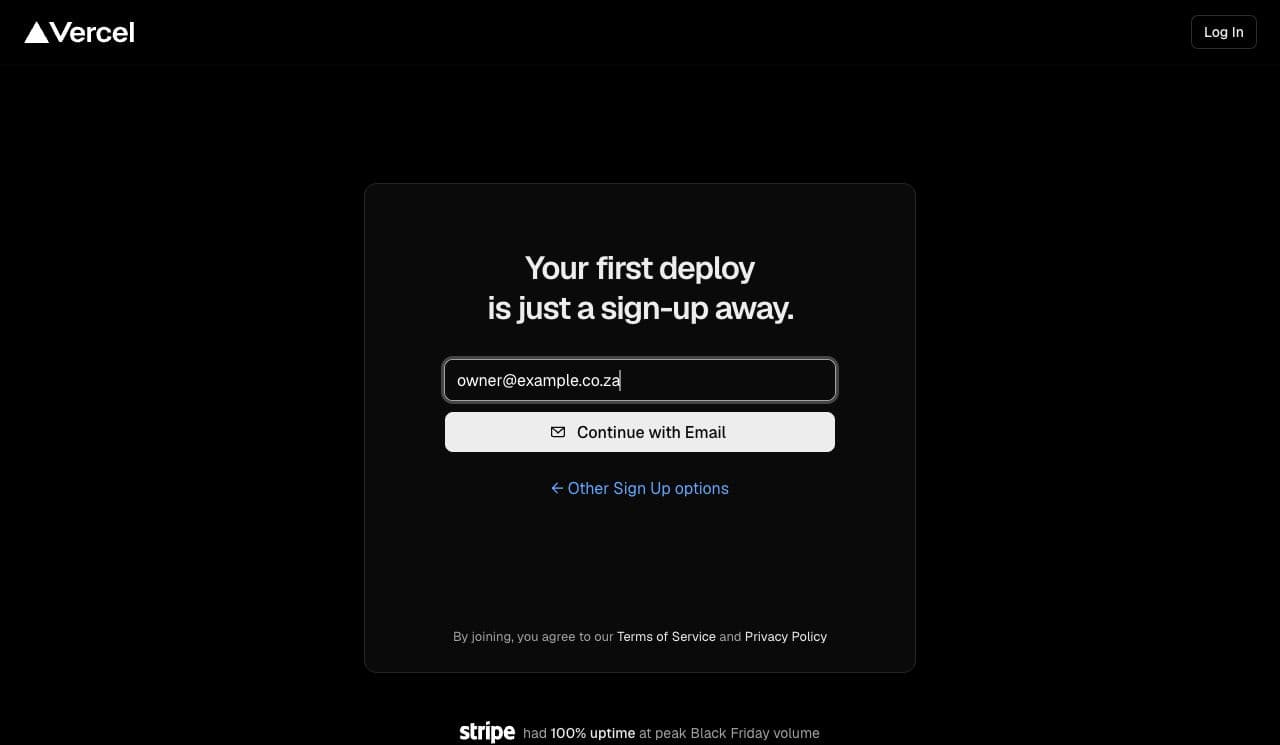
If you choose email, enter your company work email and wait for the verification message to arrive in your inbox.
Whichever method you pick, make sure it's tied to the business — not an employee's personal account — so the company keeps control if people change roles.
Step 2: Complete the Account Profile
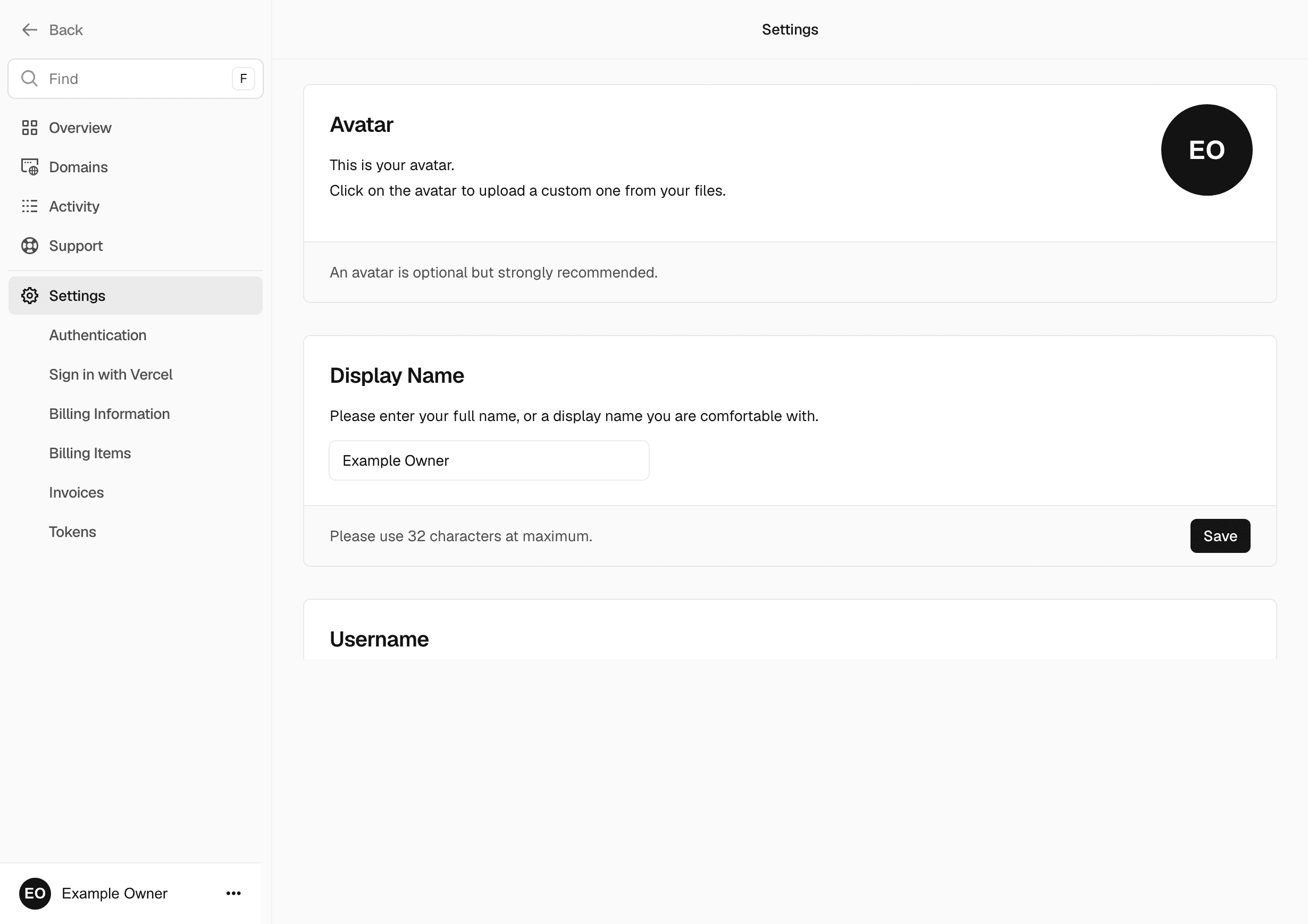
Vercel will walk you through a few setup screens. Fill in the company's or responsible person's real details where asked, and complete any email verification steps.
Step 3: Create the Company Team
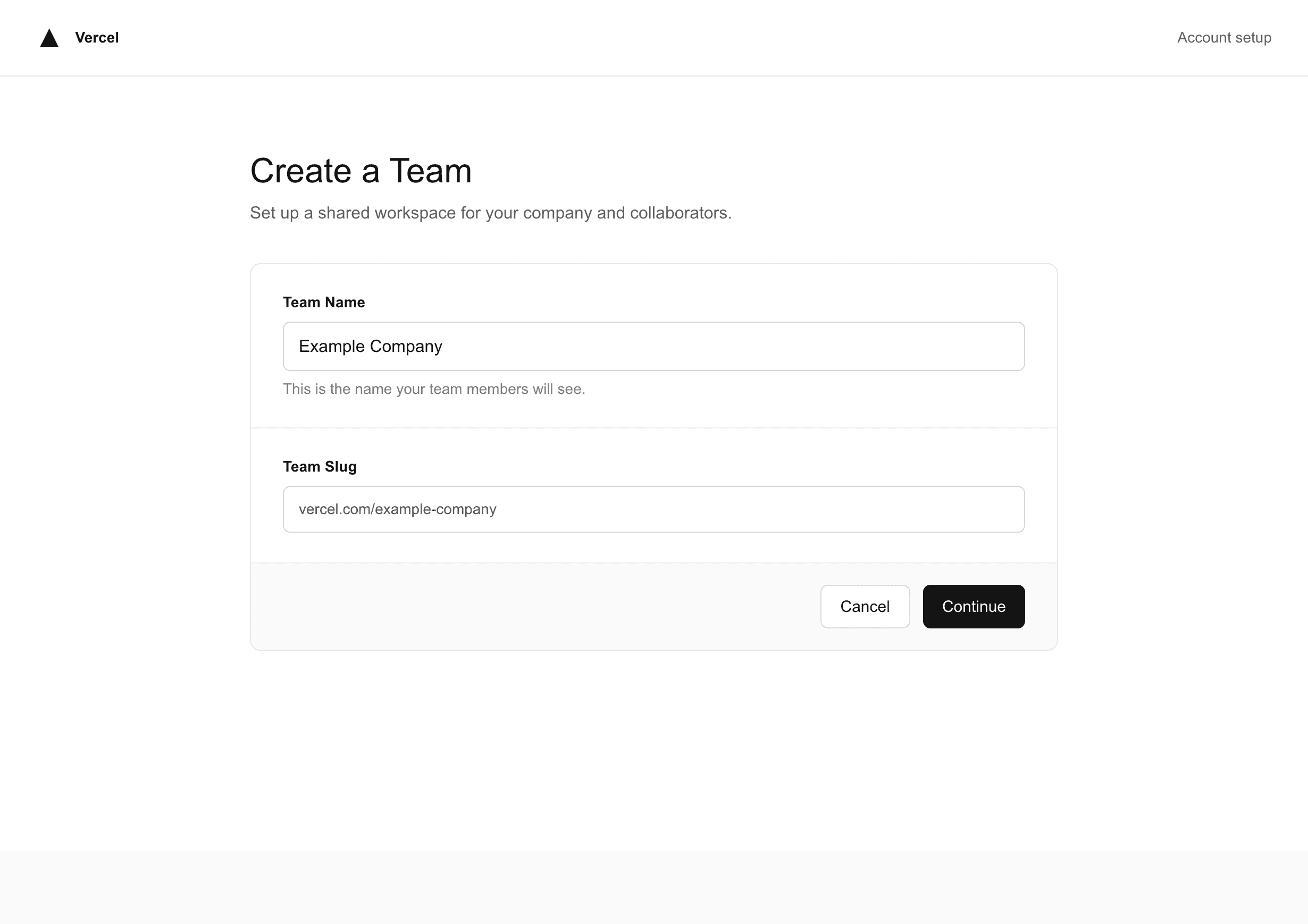
A "team" in Vercel is where all your projects live. Open the team switcher (usually in the top left) and create a new team. Use your company's trading name so it's obvious who owns the projects — for example, "Example Company" rather than something generic.
Step 4: Upgrade the Team to Pro
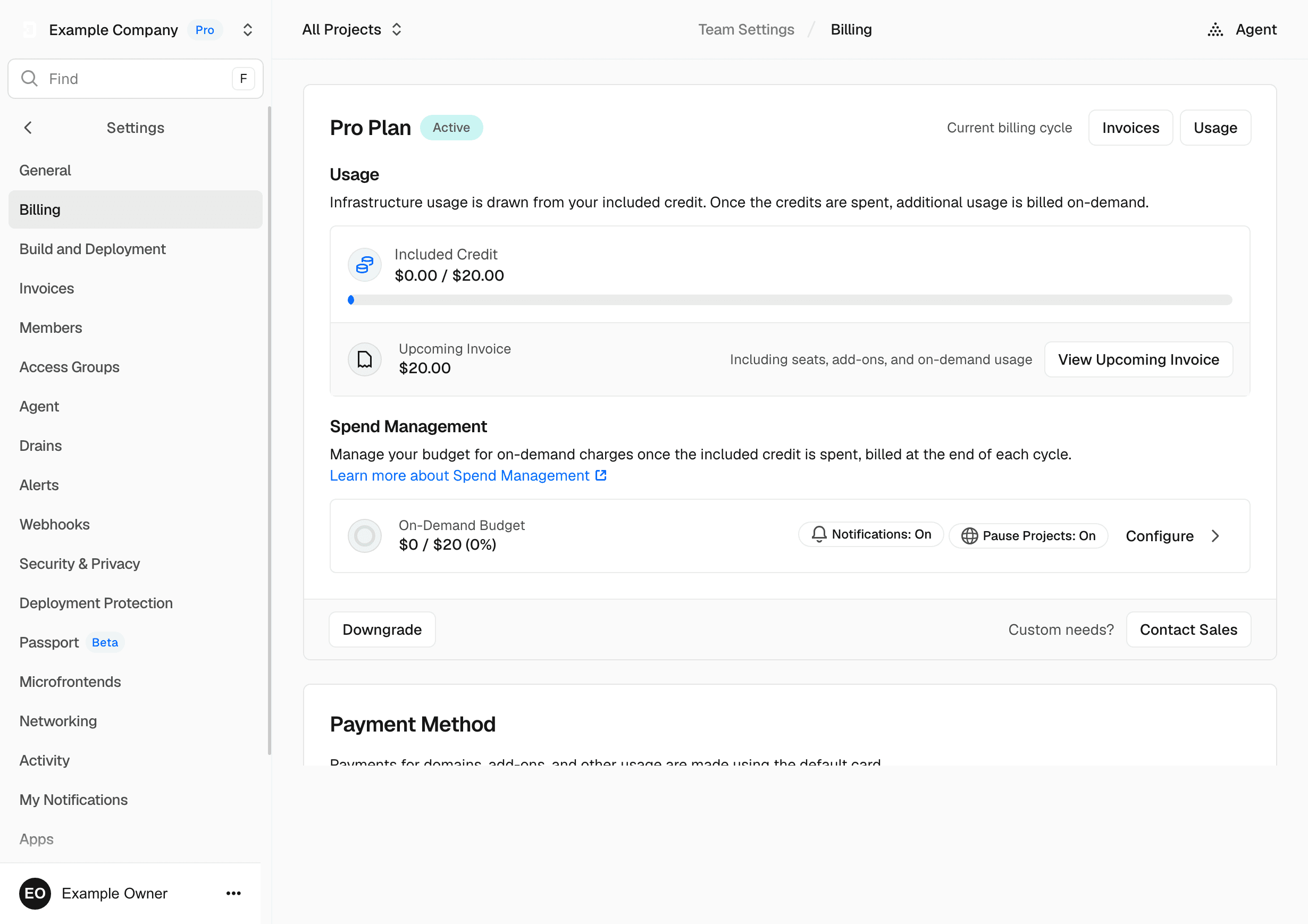
Dev3 Studio can only be invited to your team if it's on the Pro plan (or higher). Open your team's billing or plan settings, choose Pro, review the pricing (including what each seat costs), add your payment method, and confirm the upgrade.
Step 5: Open Team Members
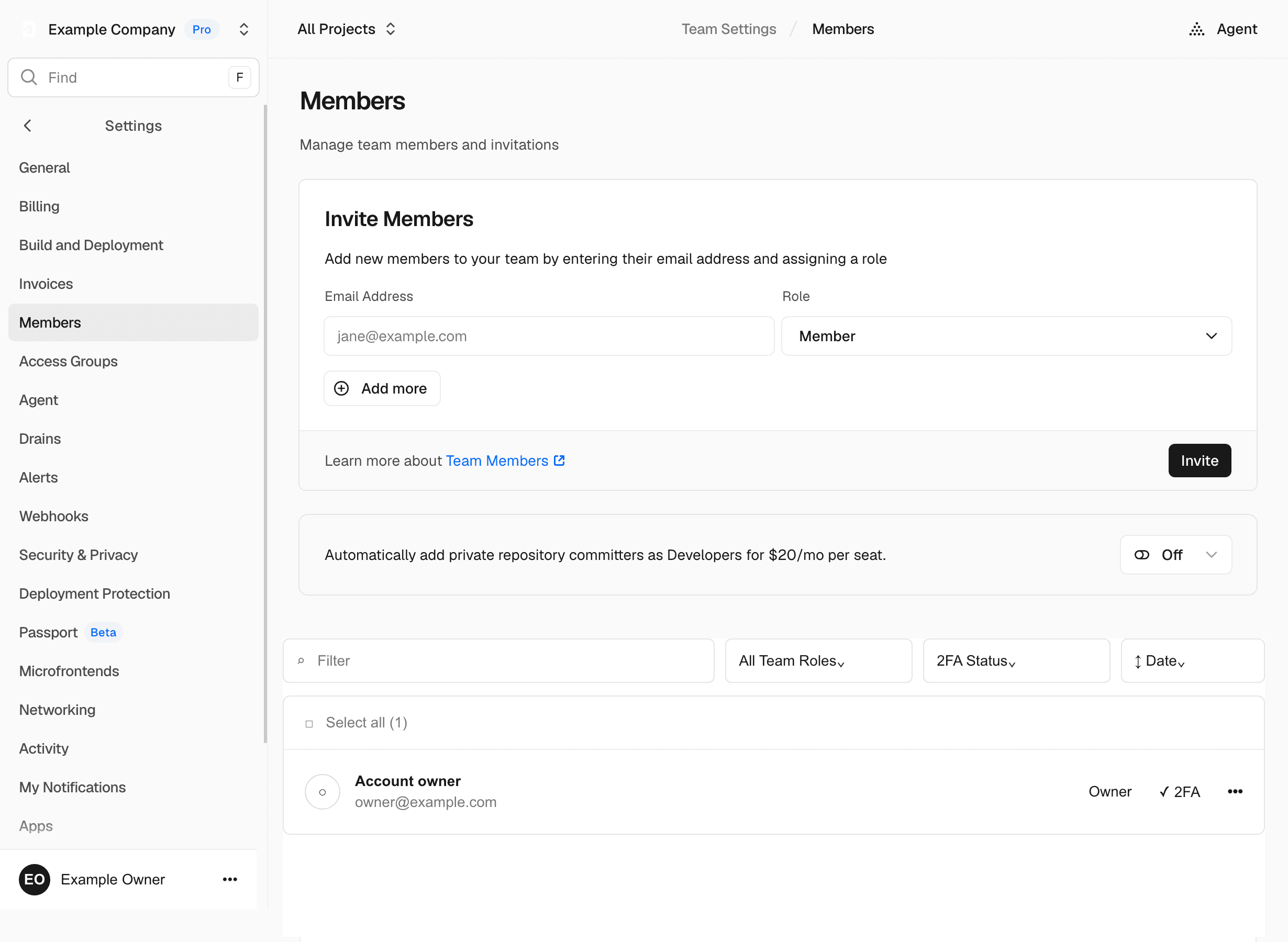
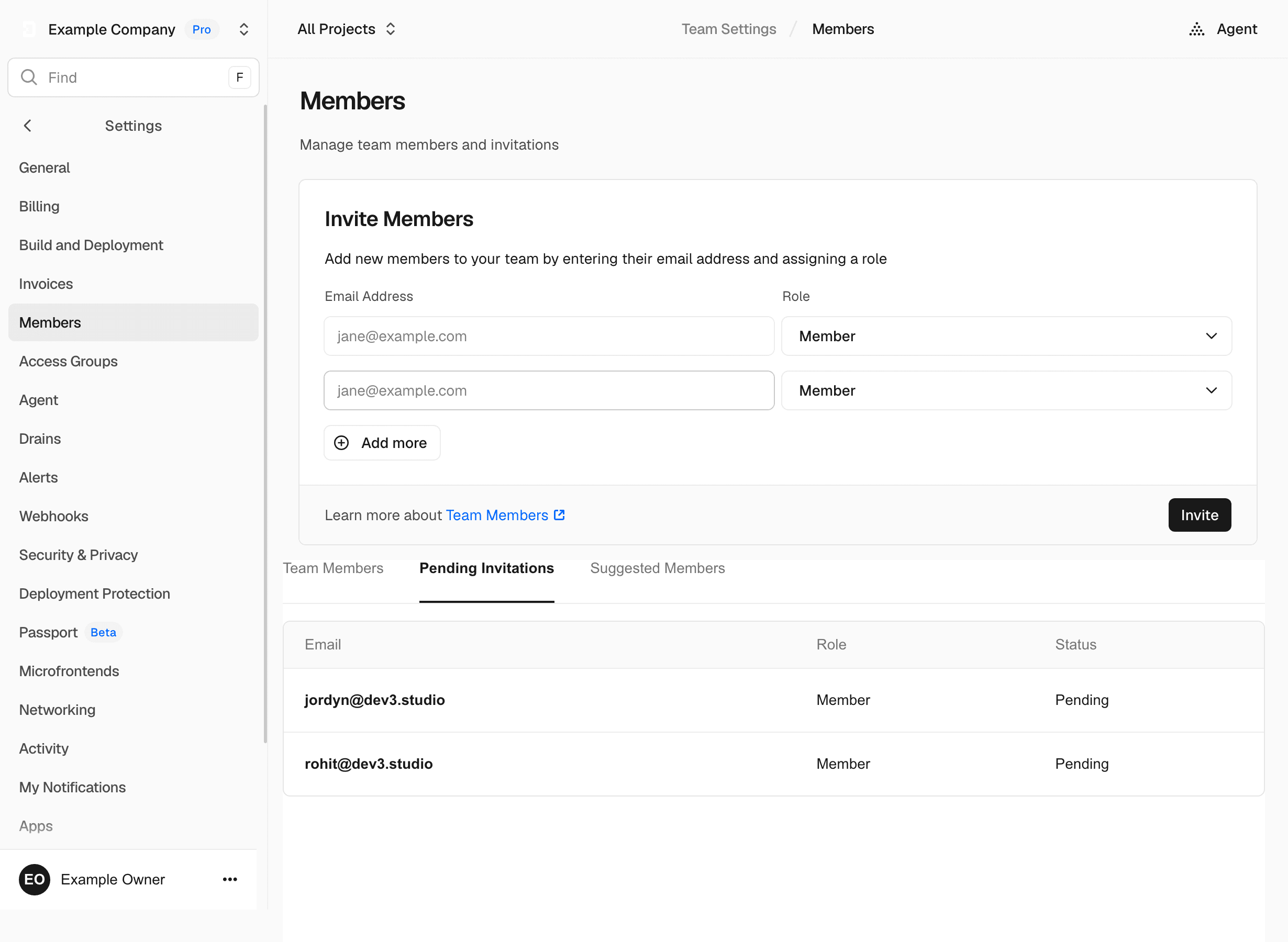
Make sure your company team is selected (check the team switcher at the top of the page). Then go to Settings and click Members. You should see an Invite or Invite Member button.
Step 6: Invite Both Dev3 Studio Members
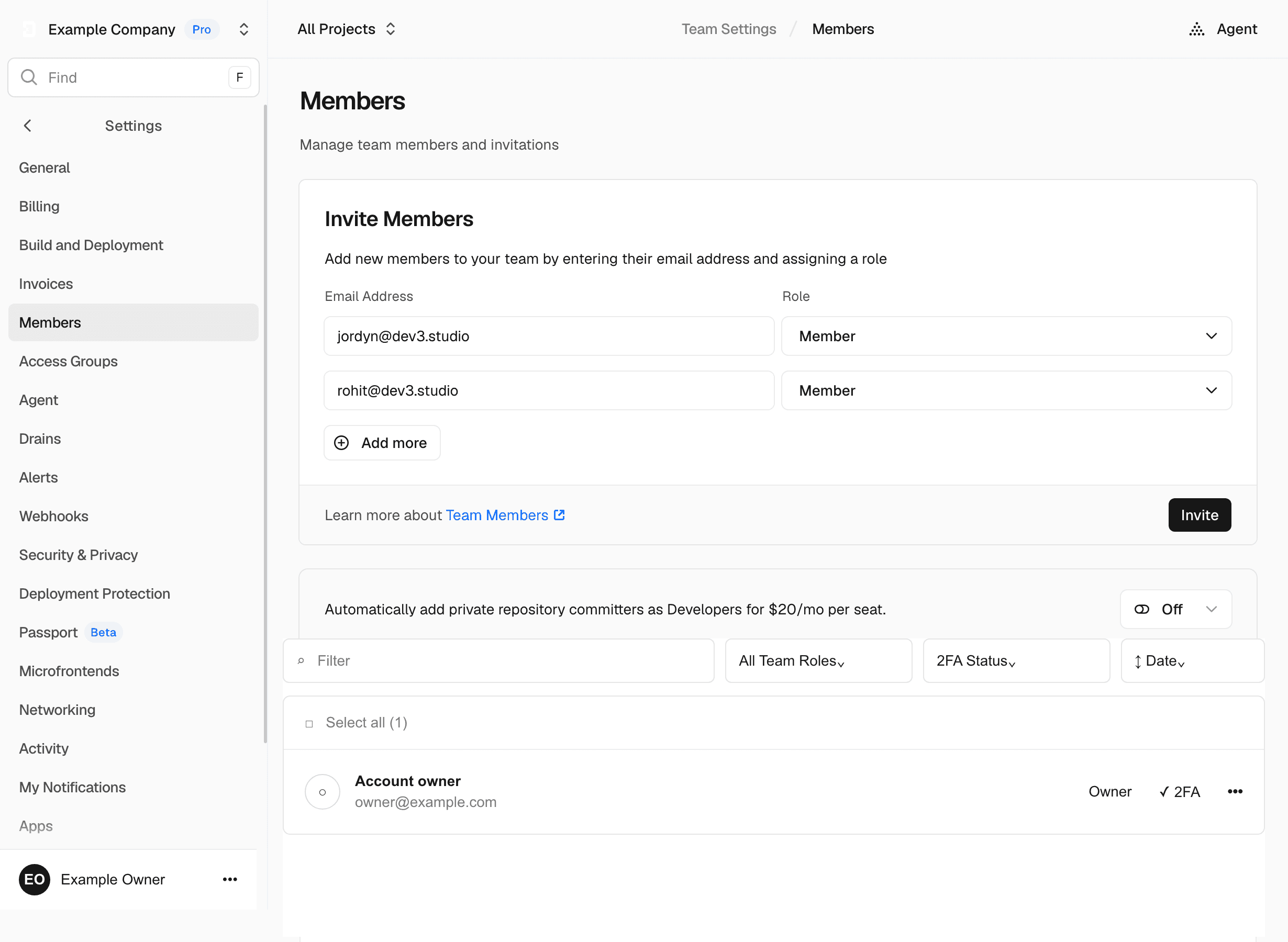
Enter the two Dev3 Studio email addresses we've given you (just ask if you don't have them to hand), and set the role to Member for both. Vercel will show you the cost of adding two seats — review it, and then send the invitations.
You stay as the Owner. The Member role gives Dev3 Studio everything we need to create and configure projects, manage deployments, set up domains, and handle environment settings — without being able to change team ownership or billing.
Step 7: Confirm the Invitations
Check the pending invitations list to make sure both addresses show up with the Member role. Invitations expire after seven days, so let us know once you've sent them and we'll accept promptly.
Completion Checklist
Troubleshooting
- You can't invite members: Make sure you're in the company team (not a personal "Hobby" scope) and that the team has been upgraded to Pro or Enterprise. The free plan doesn't support team members.
- An invitation expired: No problem — just resend it from Settings then Members.
- A code repository is missing from Vercel: You may need to authorize the Vercel integration in your GitHub, GitLab, or Bitbucket organization settings. This is separate from the Vercel account itself.
Security Reminder
You're in control. You own the team, the billing, and the payment method. Dev3 Studio's Member role lets us manage projects, deployments, domains, and environment settings — but we can't change team ownership or access your billing details. When our work together is done, you can remove our access anytime from the Members page. And as a general rule, never send passwords, API keys, or other secrets over email or chat — Vercel has a secure way to handle those through environment variables.